
How to Update Messenger in Huawei Without the Hassle
Mystery Business News PR >> Tech Guides>> How to Update Messenger in Huawei Without the Hassle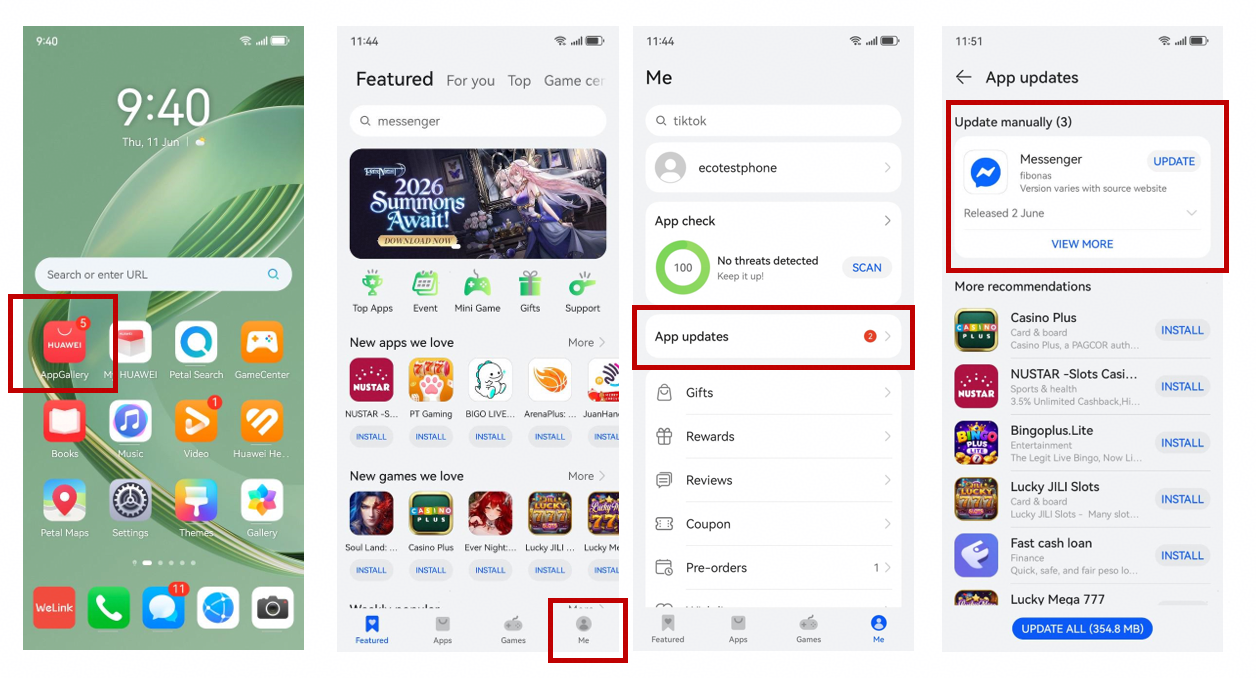
How to Update Messenger in Huawei Without the Hassle
Messenger is easy to ignore until something goes wrong: a late message, an update prompt, or an app that suddenly feels old. On a Huawei phone, the cleanest route is already inside AppGallery, so there is usually no reason to start with an unfamiliar download site.
Use AppGallery for the update
Open HUAWEI AppGallery and tap Me at the bottom right. Choose App updates, find Messenger, and tap Update. That is the update path shown in the Huawei Community guide.
If you are checking how to update messenger in huawei, this should be the first thing you try. It keeps the update tied to the same store used for the Huawei version of the app and avoids mixing different installation sources.
If Messenger will not update
An update that stalls does not automatically mean there is a problem with the phone. The Community post first asks users to check where Messenger came from. If it was installed somewhere else, reinstalling Messenger from AppGallery is the recommended way to get the latest version.
That gives you a cleaner starting point: return to the AppGallery version rather than keeping an older copy alongside another package.
Installing Messenger for the first time
If Messenger is not on the phone yet, the process is even shorter: open AppGallery, search for Messenger, and tap Install. You do not need Google Play Store for this route.
Once the installation finishes, open Messenger and sign in normally. Before you depend on it for daily communication, send a test message and make sure the app opens as expected.
Use GBox only when you need another route
The source also lists GBox as an alternative way to install or update apps. The practical order is still AppGallery first. If the app you need is not available there, GBox is the fallback mentioned in the guide.
The same article says AppGallery should be the first store you check, while GBox can be used when another app is missing.
Keep the phone software current
App updates are only one part of the setup. Huawei also recommends checking the device software under Settings > System & updates > Software update. If a new system version appears, install it from there.
Keeping the phone current also makes it easier to separate an app-version issue from a phone-software issue.
Do not forget notifications
After an update or reinstall, check that Messenger is still allowed to show alerts. Go to Settings > Notifications & status bar, search for Messenger, and turn on Allow notifications.
This step matters because an updated app can appear to be working while messages are easy to miss if notifications are disabled. A quick test message after changing the setting is enough to confirm that alerts are coming through.
It is also worth reopening Messenger once after the change. That gives you a simple check that the app launches normally and the alert setting is still active.
A simple routine for future updates
The Huawei Community page linked through how to update messenger in huawei is useful because the process is short enough to remember: AppGallery for the update, AppGallery again for a clean reinstall, GBox only as the alternative mentioned in the source, then system software and notification checks if Messenger still does not feel right.
Keep one clear source, update it from the same place, and check phone settings only when there is an actual problem.
Related Post
Smart Bulb Problems – Restore Connections With Better Setup
Smart bulbs that stop responding, disappear from an app, or work only from the wall…